
Fireworks MX 2004 – Cloning to a Selected Area
May 18, 2006 | 0 comments
Fireworks is great. It just is. While the preferred way of working with selections and masking is with vectors, Fireworks can more than accommodate people more familiar with working in bitmap mode.
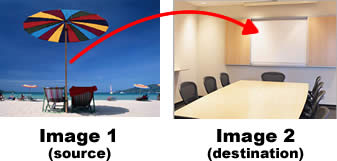
In this lesson, we’ll take a look at using the Rubber Stamp tool to “sample” one area of an image and place it into another image. More specifically, we’ll clone to a bitmap selection on another image.
This is helpful because the Rubber Stamp tool, while powerful, is not always the most graceful tool when it comes to precise selections.
Step 1: Getting Started
Select 2 images to work with. In this example, I want to take the image of the beach chairs and umbrella (Image 1) and place it inside the conference board (Image 2).

Comments