
Affiliate Button
1. First of all, make a document sized “3×3” pixels.
2. Zoom in all the way and Grab the pencil tool, and make a line like this:

3. now go, “Edit > Define Pattern” and give it a name.
4. Now, lets get started. Make a new Document, “88×31” Pixels.
5. Fill it with the color #505050. Which is a dark grey.

6. Now go to the blending options, and use the following settings:
Inner Shadow: 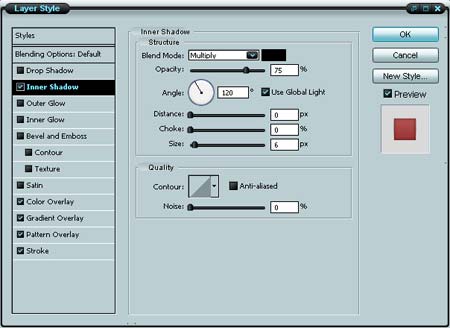
Color Overlay: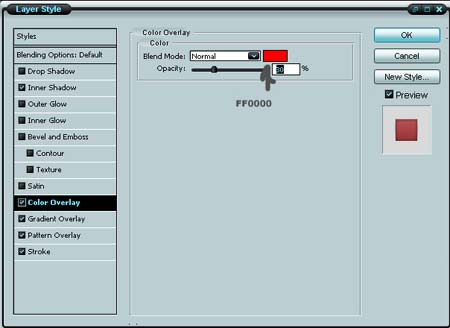
Gradient Overlay: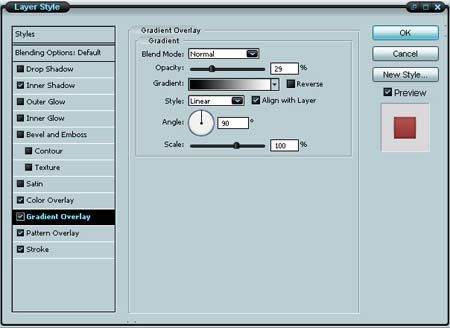
Pattern Overlay: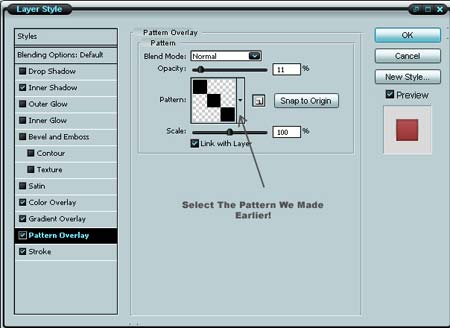
Stroke: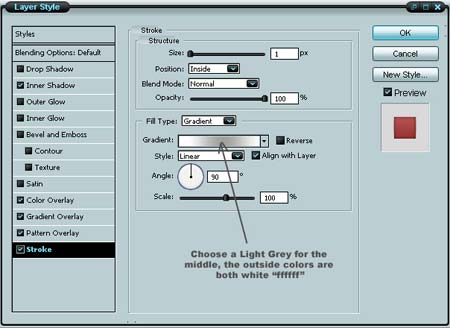
Now you should have something that looks like this:

7. Make a new layer, (Layer > New Layer)
8. And using the Eliptical Marquee tool, make a selection like so, by selection the top half of the button:

9. Now, fill that selection in with White. And drop the opacity of the layer down to 20%.

10. Now add your text to it, and your done! You can try messing around with different colors, and designs. They all come out looks very sleek and Stylish.
Comments