
Tech Button
1. New Document (100×30 Transparent Background)
2. Fill the background with black.
3. Now, enter the layer styles menu. And use the following settings:
Stroke: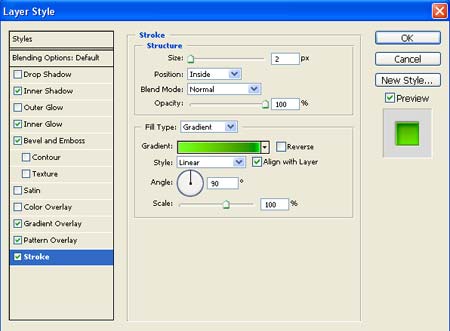
Stroke’s Gradient: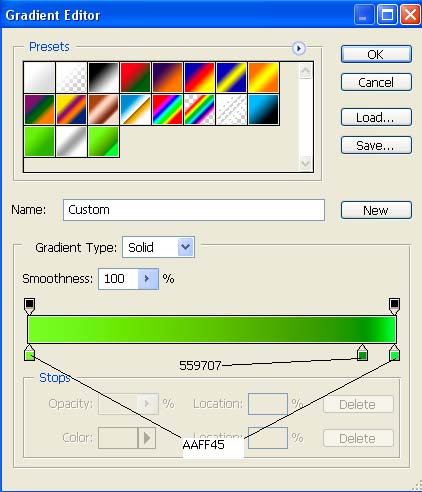

Gradient Overlay: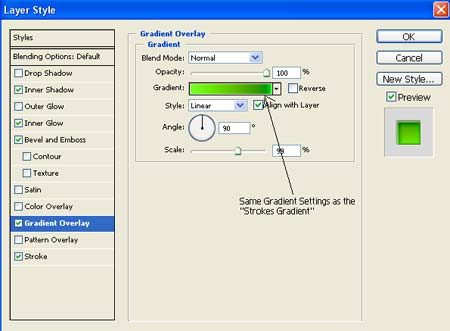
Bevel & Emboss: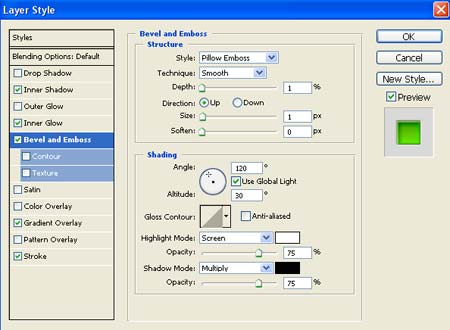
Inner Glow: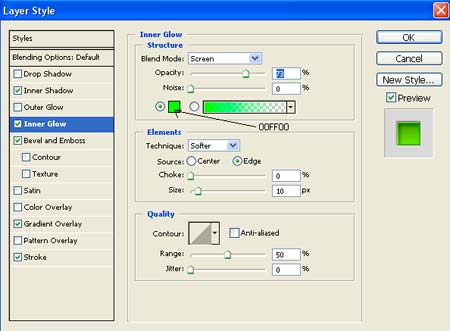
Inner Shadow: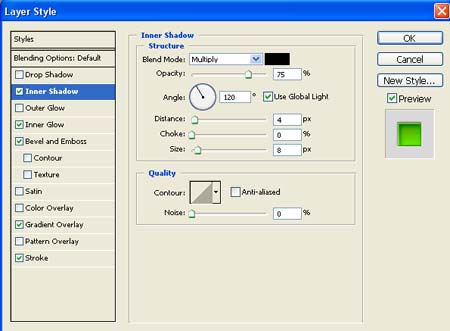
Alright, so now your button should look like this. 
Now its time to add a bit of a techy look to it.
4. Make a new layer. (Layer > New Layer)
5. Grab your “Ploygonal Lasso Tool” and make a selection like this:
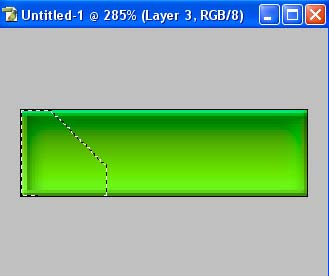
Now fill it with color #CDCDCD which should be a light grey.
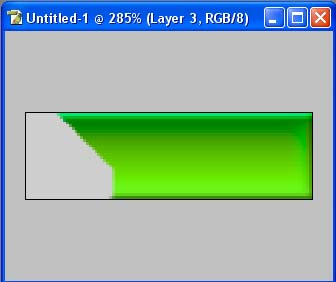
6. Now do the same thing for the other side.
7. Now bring up the layer styles, and use the following settings:
Drop Shadow: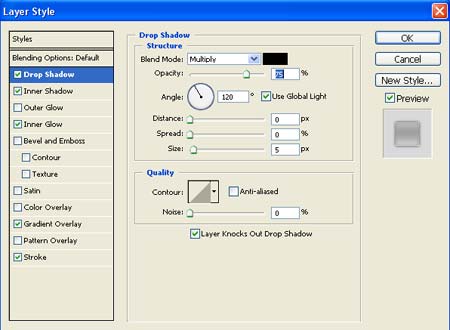
Inner Shadow: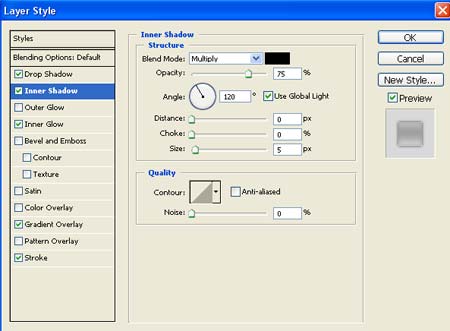
Inner Glow: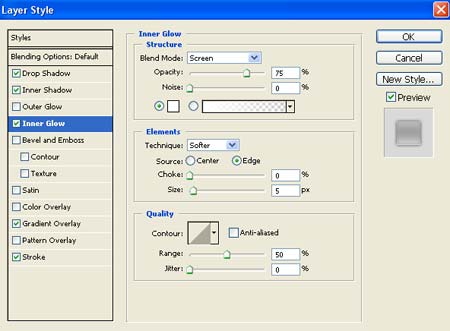
Gradient Overlay: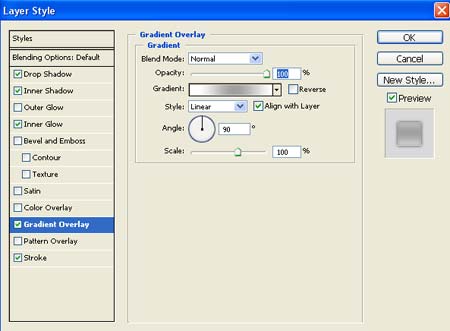
Gradient Options ^ : 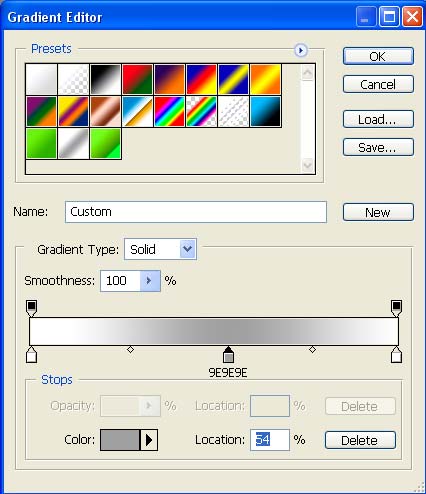
Stroke: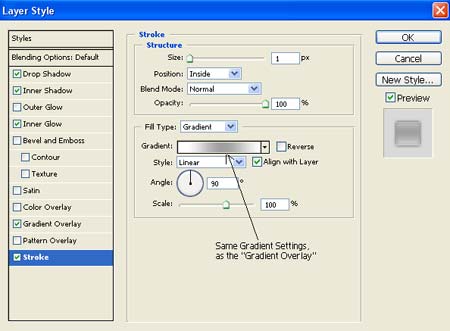
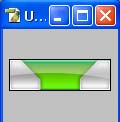
And Now, your finished result should look something like this. Let me know what you think of it.
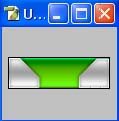
[Optional]
You can use the Shine method that we used on the previous button, if you’d like. This is what it looks like then.
Comments