
Stunning Effect
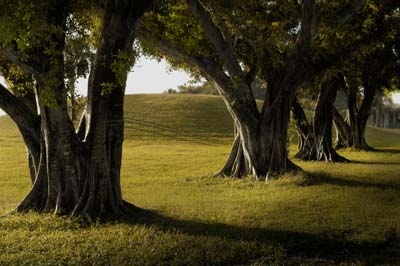
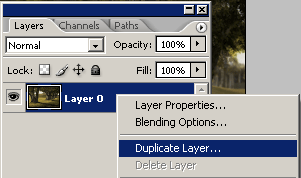
1. Open and Duplicate Layer
Open image and duplicate the background layer ( layer/duplicate layer ) or left click in background layer and duplicate
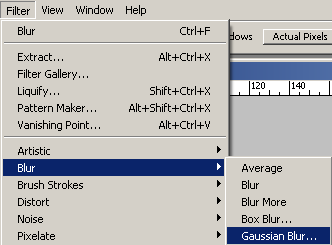
2. Apply Gaussian Blur
Select the duplicated layer (background copy ) and add “Gaussian Blur” (filter / blur / Gaussian blur )

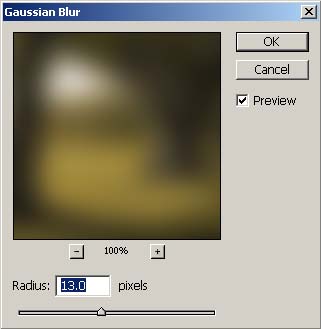
It hast to look rather blurry similar to the example , but don’t worry too much about this step you can add more blur at any moment of the process
3. Reduce Layer’s Opacity
Set the layer’s opacity value to 70%. (layers / layer style / blending options ) slide to 70% the opacity slider in the top of the layer palette.
The opacity can go from 30% to 70% it will determine how soft the pic will be
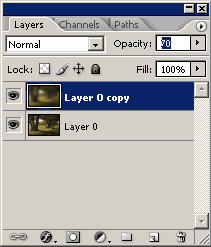
4. Add Mask sharpen items
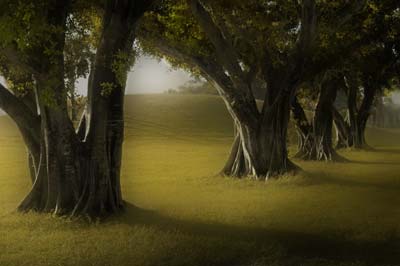
So far we have achieved to get the softness and most part of the process is done , but there may be some items that look rather blurry and a bit of sharpening will make it look more real . For this image I will mask some branches and the trees
Add a mask in the layer we have been working into (Background Copy)
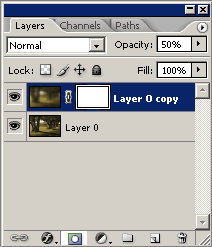
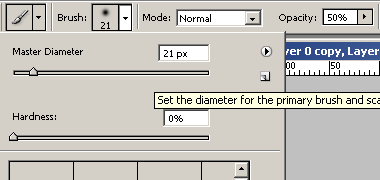
Set the soft brush tool with at least 50 % of opacity and black color and then brush the details you want to sharpen (trees, leaves, etc)
Comments