
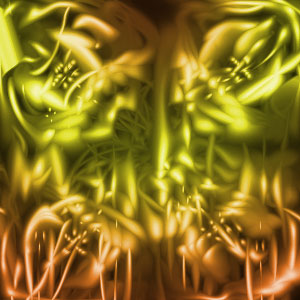
Abstract Effect Background
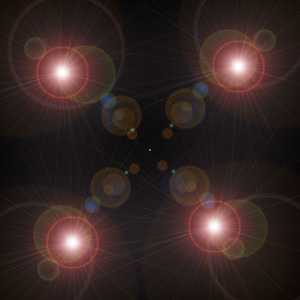
1. Open a new document of any size and fill it with black, then place some random Lens Flares on the same Layer (Filters->Render->Lens Flare)
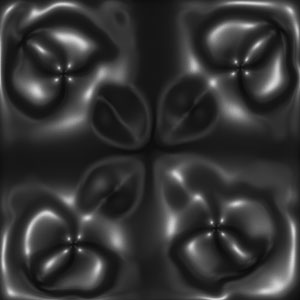
2. Apply Filter->Sketch->Chrome an use Detailes=3 and Smoothness=10
3. Set the Layer mode Lighten and duplicate it 6 times
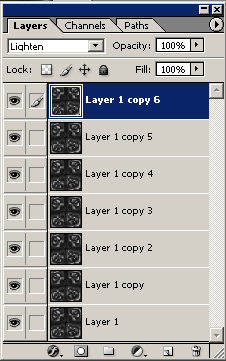

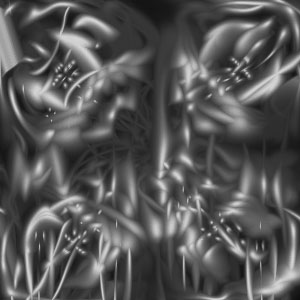
4. Start with Layer copy 6 and apply a Filter->Distrot->Twirl with value 50 then move to Layer copy 5 and that with a +50 value. On Layer copy 4 apply a Filter->Distrot->Polar Coordinates of your choise (I use Polar to Rectangular) and repeat it on Layer copy 3 on the Layer copy 2 layer apply a Filter->Distrot->Pinch with Amount 100%. On the remaining layer apply Filter->Distrot->Wave (I use Number of Generators=5, Wavelength=10-120, Amplitude=5-35, Scale=100%-100% and Type -Sine). ow merge all the layers.
5. Create a new layer and apply a Radial Gradient of your choise (I use combination of color #FF6E02-#FFFF00-#FF6D00) an set the layer mode to Overlay.
Comments