
Abstract Vectoring
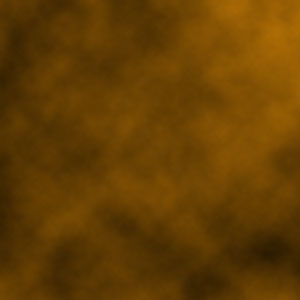
1. Making a new document 300×300, apply Filter>Render>Clouds with Foreground #FFFFFF and Background #FE9E06
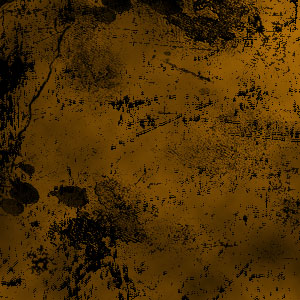
2. Make a new layer (this layer is your second layer), now take some brushes and select the color black and make some sample brush marks along the edge
3. Then you must get some colorm apply Layer>New Adjustment>Gradient Map select color you like and click OK
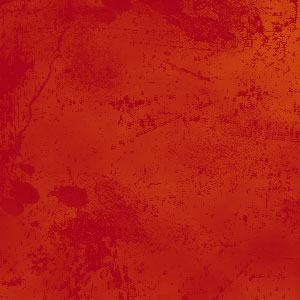
4. Now you have three layers, take the Gradient Map Layer and place it so it is second on your layer list
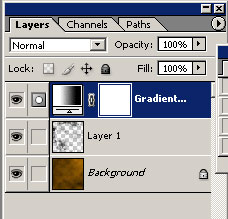

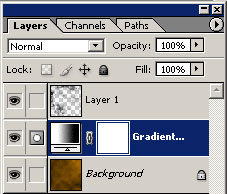
5. You should have something similar to this
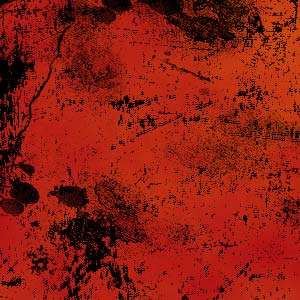
6. Highlight the layer at the top of your layer list and to enhance the color a bit go Layer>New Adjustment Layer>Brightness/Contrast and put Brightness +4, Contrast +16
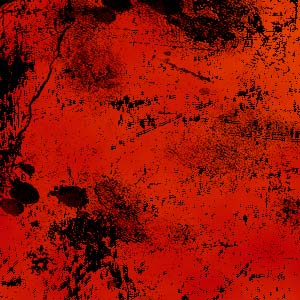
7. Make a new layer (this will be the 5th layer) and Edit>Fill>White. Now get some vector brushes and brush on the sides of the sig depending on what you want, in a grey color. Don’t overdo the vectoring.

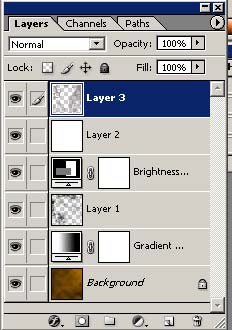
8. Next you need to get the color on the actual brushing you did earlier.
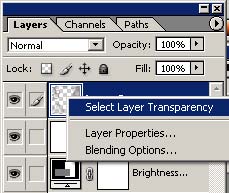
9. Then with the transparency selected, highlight the “White Layer” and hit the “Backspace” button. Then you make the “Vectors in Grey” layer invisible (click the little eye in the square) or delete it

10. Now to add some text. Write your name or whatever on your sig and ok it. Now on that Text layer you must select the layer transparency and highlight thr “White Layer”. Then hit “Backspace” and make the layer invisible or delete it

11. Make a new layer and add a border Select>All and Edit>Stroke>1px Color: Black, Inside

Comments