
Create Rust Effect
June 11, 2006 | 0 comments
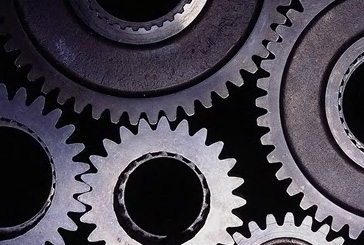
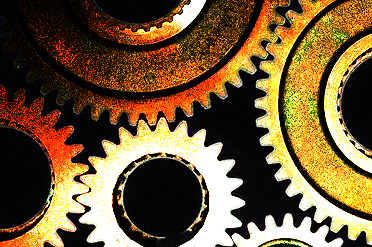
| Start by opening an image of metal wheels. |
 |
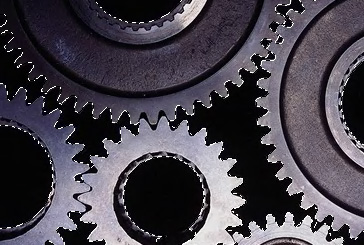
| Select the black area by clicking magic wand on it. |
 |
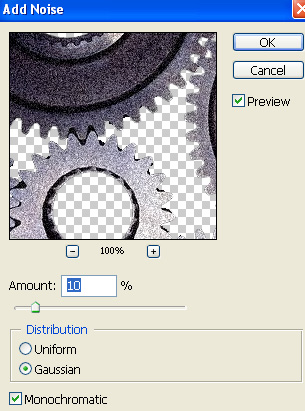
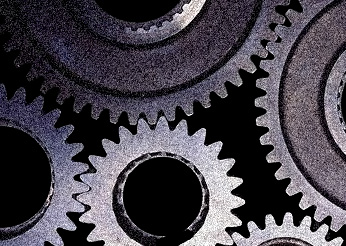
| Press Ctrl+shift+I to inverse the selection. Press Ctrl+J to copy & paste selection in a new layer. From filter menu select noise>>add noise. Apply settings as shown. |
 |
 |
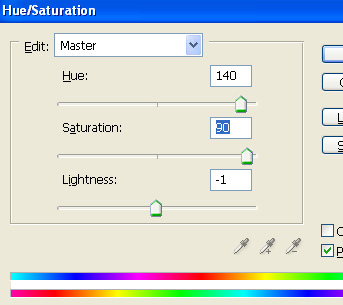
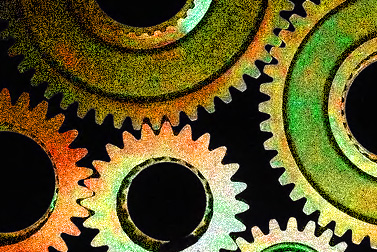
| Press Ctrl+U to open hue/saturation window. Apply settings as shown. |
 |
 |
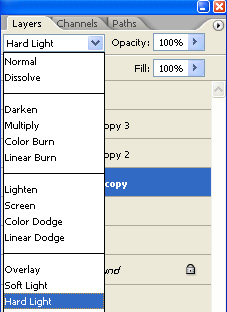
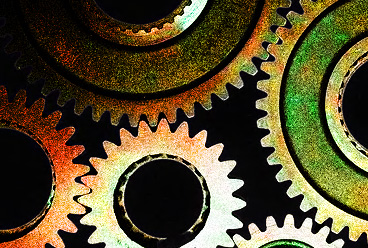
| Change the layer mode to hard light. |
 |
 |
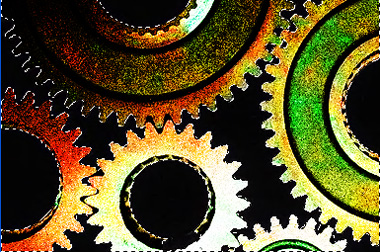
| Ctrl+Click the layer thumbnail to get the selection. |
 |
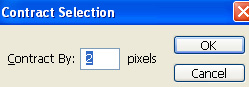
| From select menu apply modify>>contract. |
 |
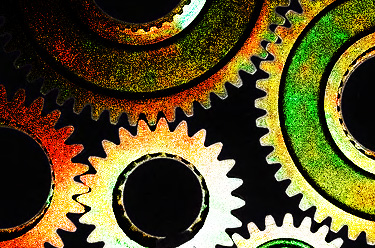
| Press Ctrl+J to copy paste the selection in a new layer. |
 |
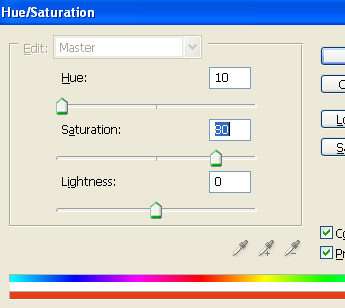
| Press Ctrl+U to open hue/saturation window. Apply settings as shown. |
 |
| Change the layer mode to color dodge. |
 |
Comments