
Nice Abstract Effect
1. First make a new canvas 500×500 transparent
2. Get your Gradient tool and use this settings

3. Now make smal lines from left to right like this
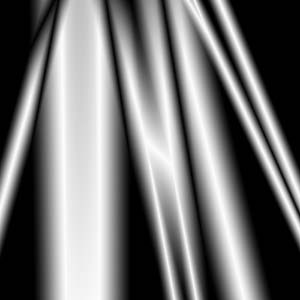
4. Then make the same lines only from up to down like this

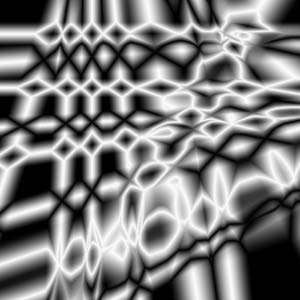
it’s importent to do it my way otherwise you get an different effect
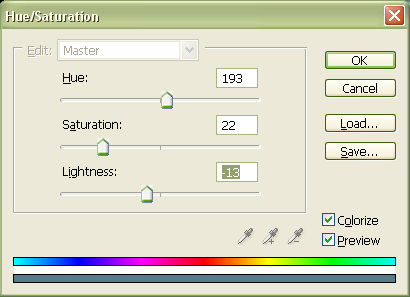
5. Now press Ctrl + U to go to Hue/Saturation and use this settings
6. Now go to Filter>> Disort>> Wave and use this settings
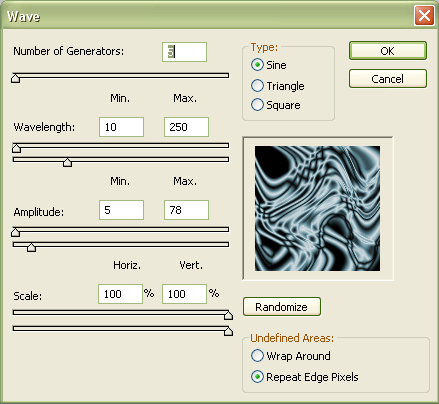
and press a few times on randomize (so your result can be different to mine)
7. Now press Ctrl + J to duplicate the layer
8. Now go to Edit>> Transform>> Rotate 90 CW
9. Now set Blending Mode to Screen
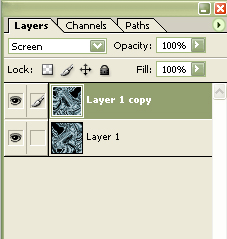
10. Press Ctrl + E to merge the layers
11. Now duplicate the layer again by pressing Ctrl + J
12. Now go to Filter>> Blur>> Radial Blur and use these settings
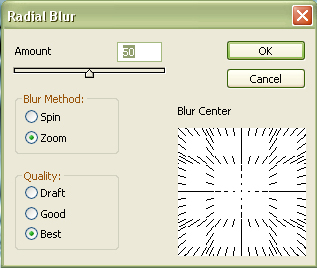
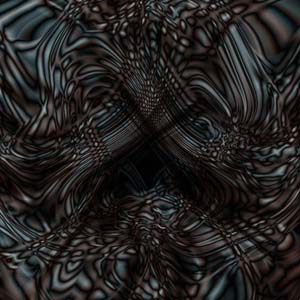
13. Now set your Blending Mode to Difference and your done
Comments