»
Simulated Alpha Channels - Part IV
|
|
Simulated Alpha ChannelsGrab the gradient mask layer, and drag it below the original image copy.
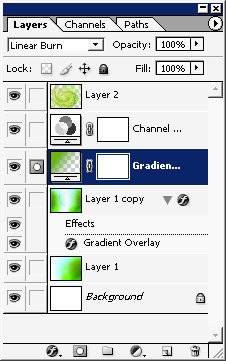
For this effect to show properly, we are going to need another layer. Click the New Layer icon at the bottom of the Layers palette. Name the new layer “white layer”. With the new layer selected, press Ctrl-Backspace to fill it with white (assuming you have the default colors showing in the color box; if not, click the default colors icon in the very bottom left corner of your toolbox to make white your background color). Drag the white layer to be directly below the original image copy, which will make it the second layer from the top. It will effectively act as a new background. Now load the gradient mask layer as a selection. Do this by pressing Ctrl and clicking on the layer’s name. Next, choose Select > Inverse. Then, with the selection active, select the original image copy layer. Don’t worry that the selection outline looks wrong; the ‘marching ants’ outline only includes pixels that are more than fifty percent selected. Since the gradient fades to full transparency, its transparent edge will fall below this threshold, but those pixels are selected to the degree that they are opaque. This is what makes masks so useful. Press the Delete key. Your image should appear as shown below. The white you see is the new white background layer showing through. Pixels have been deleted from the image to the degree that they were selected. Gradient masks are very useful for blending one image into another, or for any kind of transition. At the bottom of the page you can see where I’ve added some text to the new white area.
You can create any kind of mask you like using any of the editing tools. Opacity is the only factor that determines the degree of selection that will result from your mask. You can use any color you like, and paint any outline or shape that you like. You might try experimenting with the paintbrush on an empty layer. Try different brushes with an opacity of 30 %. You do have to be sure and remember the steps necessary to load your selection. - Select your mask layer. It should be stored below the visible layers at the bottom of the image.
- Press the Ctrl key, and click on the mask layer’s name.
- If necessary, choose Select > Inverse. Remember, the selection is for the areas that are painted black. In the example I used, the flower was not black, so it was necessary to invert the selection in order to select the flower.
- Click on the image’s layer (“original image copy”). This is important! I forgot to do this just about every time I went to use my selection. Make sure you choose your image layer after activating the selection outline from the mask layer.
- And, that’s it. You can apply filters, cut, copy, move, and color selections. You should be able to take advantage of many of the lessons in Photoshop books, as well as online tutorials that require alpha channels or any kind of complicated selections.
- When you are ready to output your image, save a copy with the mask layers, and then delete them from the copy your are outputting.
An alternate, and possibly better method for simulating an alpha channel was suggested by Richard Coencas in the Elements User to User forum at Adobe.com. It goes as follows: - Select the layer which contains the object you want to select and mask.
- Click the little black and white circle at the bottom of the Layers palette, and choose Brightness/Contrast, or Levels from the menu (it doesn’t matter which).
- When the adjustment dialog box appears, do not make any changes—simply click OK. This adds an adjustment layer without changing your image in any way.
- Select the adjustment layer you just added, and, while pressing the Shift and Alt keys, click on the white square.
- Choose a hard edged brush, and paint with black on the image, around the outside of the object you want to select. Wherever you paint, you will see a partially transparent red color. This is the rubylith mask. Use black to add to the mask, and switch to white to remove any mistakes.
- When you’re satisfied with your outline, press the Alt and Shift keys and click the mask again, then press Alt alone and click the mask. You will then see the mask, alone (without the underlying image) in black and white. Check to see that you’ve made the black parts of your mask fully opaque.
- To load your adjustment layer mask as a selection, press Ctrl and click on the mask. Then switch to the image layer. Don’t forget to do this! You don’t want to select the adjustment, you want to select the image object.
- The advantage of this method is that you don’t need to drag the layer below the background. This is a layer mask and it only affects the layer it is attached to, which in this case, is an adjustment with zero change. “Real” layer masks, which this is, are not visible in the image. But, no, this layer mask can’t be applied directly to an image layer like you can in Photoshop—you still have to load the selection and then switch to your image layer.
- The disadvantage is that you may or may not like working with the red, rubylith color.
[This is only for Elements 1 users. In Elements 2, you have the ability to save and load alpha channels via Select > Save Selection. However, you can't see or edit your alphas.] If you have a document which you know contains an alpha channel, there is a way to make the alpha channel visible, and therefore useable in Elements. You may have received files created in Photoshop which you contain alpha channels. Also, most 3D programs will allow you to create an alpha channel matte of objects in your scene during an image render. This technique just occurred to me and I’m posting it in text only, for you to play with. I’m in the middle of another project right now, and don’t have time to add illustrations or perfect the method. (This is not included on the .pdf for this tutorial). Please let me know if you find a way to refine the edges of the revealed alpha. Here is a zipped .psd file (7 KB) which includes an alpha channel. I’ve copied the contents of the alpha to a layer, so you can see if you’re matching the alpha when using this method. Okay, here are the steps: - With your .psd file open in Elements, create a new layer at the top of the stack and fill it with white.
- Choose Filter > Render > Lighting Effects.
- In the Lighting Effects dialog box, choose Omni from the Light Type menu at the top.
- At the bottom of the dialog box, choose Alpha 1 (or whatever your alpha is called) from the Texture Channel menu. You’ll have to scroll to see it.
- Make sure White is High is checked, and move the Height slider towards Mountainous just enough to make the alpha outline clear in the preview window.
- In the preview window, if necessary, drag and manipulate the Omni thingy to center it over the alpha shape. Then click OK to exit the dialog.
- You should see a black outline of your alpha on your new white layer. With that layer selected in the Layers palette, choose Filter > Other > Maximum. Set Radius to 1 pixel and click OK.
- This is as far as I can take you. You should be within one pixel of recreating the alpha channel. However, that one pixel fringe is a problem. There is probably a way to get rid of it, but I haven’t the time to spend diddling with it. Help!
- You can play with Enhance > Brightness/Contrast > Levels. However, while this sharpens and intensifies the black outline, it shrinks it. You can try using Select > Modify > Contract (or Expand).
- To see how closely you’re matching the reference layer I created for you (by copying the alpha to a layer), create a new layer at the to of the stack. Use the magic wand with Tolerance set to zero, and Contiguous checked to select the white area outside your outline and fill it with black (on the new layer). Change that layer’s blend mode to Difference. Turn off the outline layer’s visibility. If the image is totally black, you have a perfect match. If you see a fringe outline, it’s not.
|
»
Simulated Alpha Channels - Part III
|
|
Simulated Alpha ChannelsWith the mask corrected, and the flower layer’s visibility turned back on, the image looked as shown below. The last step is to grab the completed alpha channel layer (click on the layer name and drag) and move it below the original image copy.
Then turn off visibility of the alpha channel layer by clicking on the eyeball icon. Any time you want to select the flower, go to the alpha channel layer. Press the Ctrl key, and click on the alpha channel layer name. This loads the layer’s transparency mask. What that means is it selects all pixels according to their opacity. Since the black area is where the flower is not, we need to invert the selection. In the menu bar at the top of your window, choose Select > Inverse. With the selection active, select the flower’s layer (“original image copy”). The flower is now selected, and ready to do with as you will. In my Photoshop Combining Images tutorial in the Photoshop section, I dragged this same flower onto another image using a quick mask selection which is the equivalent of what we have just done. 
 What else can you do with simulated alpha channels? Regular Photoshop users can probably figure this out for themselves, but I believe you can do many things that you can do with a true alpha channel. Lets try adding a gradient mask to the flower image. If your flower is selected, deselect it by choosing Select > Deselect, or pressing Ctrl-D. Then click on the New Layer button at the bottom of the layers palette. Drag the new layer to be at the top of the stack, if it is not there already, and then rename it, “gradient mask”. Choose the gradient tool in the toolbox.
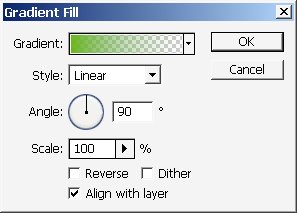
In the gradient tool’s options bar click the little down arrow next to the gradient thumbnail (not the thumbnail itself) to access the pop-up palette. Choose the Foreground to Transparent gradient, as shown. It’s second from the left in the top row.
Choose the linear gradient. It’s the left most one on the options bar just to the right of the Edit button.
The rest of your gradient tool’s options bar should appear as shown below. Make sure the new gradient mask layer is selected in the layers palette. Then click on the flower image just to the right of the flower’s yellow center, and drag straight across to the image’s right edge. The result, as shown below looks, well, very black. Don’t worry. I know what I’m doing … I think.


|
»
Simulated Alpha Channels - Part II
|
|
Simulated Alpha ChannelsBefore attempting to paint close to the flower’s edges, zoom way in so you can see exactly what you’re doing. You can either click on the image with the zoom tool, or use the zoom tool to drag a selection box around the area you want to zoom to.
If you check the Fit on Screen button on the zoom tool’s options bar, the image window will maximize for you. I prefer to leave Ignore Palettes unchecked. If it is selected, the image will spread under the palettes, and this is a nuisance. While you are editing as you are zoomed way in, press the spacebar to access the hand tool. Click and drag on your image with the hand to move new parts of the flower’s edges into view.
Increase or decrease your brush size as needed by pressing the bracket keys, [ ]. Be as precise as you can, zooming in even closer, if necessary. Use tiny brushes to get into little nooks and crannies. The illustration below shows the brush icon following the flower edge at large magnification. 
 If you paint black onto the flower by mistake, select the eraser tool in the toolbox, and remove the black from the flower.
When you feel you have painted everything outside the flower completely black, check your work by turning off the visibility of all layers except alpha channel. To turn off visibility, click on the eyeball icon at the left end of a layer. This toggles visibility off and on.
As you can see in my example below, mine was not at all complete. Keep the other layers turned off, and repaint over any areas that are not totally black.

|
»
Simulated Alpha Channels - Part I
|
|
Simulated Alpha Channels[Please note: Elements 2 allows the saving of selections as alphas. However, since you can't see or edit them until they are loaded, and then you will only see the marching ants outline, the techniques described here should still prove useful. Note that any selection can be edited in the same manner as a Photoshop channel by using an adjustment layer mask as a temporary proxy.]
Beginner Elements users, just ignore the title of this tutorial. You’ll learn what an alpha channel is if you read any full version Photoshop books, or tutorials, but there are no alpha channels in Elements. What this tutorial will teach you, is how to make complicated selections without using any of the selection tools, and then, how to save those selection outlines so you can reuse them at any time. I think you will find that the methods shown here are much better than struggling with the lasso tools, or the magic wand. If you would like to use my image, shown below, download it to your hard drive, open it in Elements, and save it in psd format. I am going to show you how to select the flower, and then save that selection so you can reuse it at any time.
In the Layers palette, double click on the background (the only) layer. Double click anywhere on the blue part, where the finger icon is shown, below.
 In the dialog box that appears, give the layer a name that will help you remember what it is. Or, if you won’t be using many layers, you can simply accept Adobe’s default name of Layer 0, and click OK. I named mine, “original image,” as shown.
Background layers don’t allow transparency, and you can’t move any other layers below them. The lock icon you see at the right end of the layer is there because the layer is considered partially locked since it doesn’t allow transparency. As soon as you rename the layer, it becomes a “regular” layer and the lock icon disappears. Next, I want to duplicate this layer. Click on the little arrow in the upper right corner of the layers palette to access the palette menu. Choose Duplicate Layer.
 I left the layer with the default name of “original image copy”. We will use this duplicate layer to work on, while keeping the true original out of sight at the bottom of the layers palette. This is a good habit to get into. To lock the original image, select its layer, and then click the check box next to the lock icon at the top of the layers palette.
Then turn off the visibility for this layer by clicking the eyeball icon at the far left end of its layer.
Select the copy layer (the top, unlocked layer), and then click on the New Layer button at the bottom of the layers palette.
New layers are added above the currently selected layer, and we want this new one on top of the original image copy. Double click on this new layer, and name it “alpha channel.” With the alpha channel layer selected, choose the paintbrush in the toolbox.
 Make sure you have the default colors in your color boxes by clicking the default colors icon at the very bottom left corner of the toolbox.
Be sure the Opacity is set to 100 % in the paintbrush tool’s options bar . Click on the little arrow next to the brush thumbnail (shown with the pointer, below) to access the brushes pop-up palette. Pick a hard edged brush from the top row.
 A shortcut to make your brush larger while you are painting is to click the right bracket key on your keyboard. To make your brush smaller, click on the left bracket, [. You’ll need to change brush size often as you paint around the flower’s edge. You’ll want to use a large brush to quickly paint over the areas away from the flower, and little brushes for precise edge details. Your first stage should appear as shown below. Be sure you are painting on the alpha channel layer.
|
»
Symmetrical Flowers - Part II
|
|
Symmetrical Flowers With the top, newly merged layer selected in the Layers palette, use the rectangular marquee tool to once again drag a selection that crosses the center of the flower. If your first marquee was horizontal as mine was, make this second one vertical. And, if your first was vertical, make this one horizontal.
As before, you have to choose which side you want to use. I liked both sides, so I’m going to use the left side first, as shown. I’ll go back and do the right side later. Once you have the selection where you want it, press Ctrl-J, or choose Layer > New > Layer via Copy. Then select the new, top copied layer and duplicate it by dragging it onto the New Layer button at the bottom of the Layers palette, or by choosing Duplicate Layer from the Layers palette menu. Turn off visibility for all but the two top layers that you just created. You’ll remember that you do this by clicking on the eyeball icon at the left end of the layers you want to turn off. With the top, duplicate layer selected in the Layers palette, choose Image > Rotate > Flip Horizontal or Flip Vertical if your marquee was Horizontal. (Photoshop users use Edit > Transform > Flip Vertical/Horizontal.) Select the move tool in the toolbox, and, pressing the Shift key, drag the newly flipped layer to the right. Zoom in, and use the arrow keys to nudge the layers into exact alignment. As you can surely tell, this is exactly the same process we used before. Here’s how your Layers palette should look at this point.
Below is the image created so far.  I mentioned earlier that I also liked the right side of the image when I dragged my rectangular marquee, above. If you would like to see how both sides of your flower look with a double flip, you can flip the other side, too. Select the top layer which, in my example Layers palette above is called Copy 2nd Split. Press Ctrl-E, or choose Merge Down from the Layers palette menu. Then turn off visibility for this newly merged layer. Turn visibility back on for the combined first flip which is what we started with before dragging our second marquee. In the example Layers palette this layer is called Merged First Split.
Use the same steps as before. Drag a vertical marquee, only this time select the right side of the image instead of the left.
Proceed through the steps as I have already described. Copy. Duplicate. Flip. Drag. Merge. Enjoy. You can choose File > Save As and check the As a Copy button to save separate versions.
Or, you can turn visibility on and off for the various versions to pick the one you like best. Note that when your rectangular marquee selection includes less than a full half of the image, you will end up with a strip of transparency on one side of the picture while visibility is still turned off for the layers below.
You can remove this with the crop tool, but if you have multiple versions as we do here, use the crop tool only on a copy. The crop tool cuts all layers, and other versions won’t need cropping in the same place.
|
»
Symmetrical Flowers - Part I
|
|
Symmetrical Flowers [Written for Elements 1. Users of version 2, please note that the command to flip a layer is now found at Image > Rotate > Flip Layer Horizontal at the bottom of the Rotate menu. And the Ctrl-J shortcut for duplicating a layer or selection contents to a new layer is disabled in Elements 2. Use Layer > New > Layer via Copy instead.] In the Free Photos section of this site, there is a group of images called “Photoshop Flowers.” If you haven’t seen them, you might take a look because those images are examples of what this tutorial is going to be about. Symmetrical flowers are very simple to make. They are also a lot of fun, and a little bit addictive. I made all the images in the Free Photos section in one afternoon when I had nothing else to do. Though I am using flowers in this lesson, you can use this procedure on any object that is radially symmetrical. You don’t want something that is perfectly symmetrical, though. The deviations from symmetry are what make the process work. Shown below is the flower that I’ll be using. If you’d like to use this image, download it (right-click on the image and choose Save Picture As. Save to a location that you can remember). Open it in Elements and use Save As to convert it to Photoshop’s .psd format. I make it a habit to always duplicate the background layer when editing an image, so that’s my first step, here. Grab the background layer in the Layers palette, and drag it onto the New Layer button, or choose Duplicate Layer from the Layers palette menu. If you use the latter method, simply click OK in the Duplicate Layer dialog box that appears. Select the new, duplicate layer in the Layers palette and then choose the rectangular marquee tool in the toolbox. In the rectangular marquee tool’s options bar, make sure Feather is set to zero Drag a selection that crosses either the vertical center or horizontal center of the flower. You want this marquee to cross the center and include all the rest of that side of the image. Here, I considered using the vertical center.
However, I didn’t like the way the selection split the petals both above and below the center. They would not line up well in the next step. So, I deselected (press Ctrl-D) and dragged a horizontal selection instead.
This selection splits the image in a much better spot. You can see that it cuts almost exactly across the petal on the left, and is nicely between the petals on the right. Also, it leaves all of the stamens (hope that’s the right term for the things in the middle of the flower) within the selection which is nice since they’re interesting. You can reposition your selection while you’re dragging it by pressing the spacebar (with the left mouse button still held down). If you don’t get what you want on the first drag, deselect (press Ctrl-D) and try again. Once you have the selection right where you want it, press Ctrl-J, or choose Layer > New > Layer via Copy. Next, with the new, top, copied layer selected (dark blue) in the Layers palette, click on the little arrow in the upper right corner of the Layers palette and choose Duplicate Layer from the menu. Click OK in the dialog box that appears. Or drag the copied layer you just made onto the New Layer button at the bottom of the Layers palette. This will create a duplicate layer without the dialog box. This duplicate layer should be at the top of the Layers palette. With that duplicate layer selected, choose Image > Rotate > Flip Vertical. (Photoshop users, choose Edit > Transform > Flip Vertical.)
Note that if you are using your own image, and chose to use a vertical selection in the first step, rather than the horizontal one used here, you should choose Flip Horizontal here. Turn off visibility for all but the top two (copied) layers in the Layers palette. Do this by clicking on the eyeball icon at the left end of all layers below these two top layers.
With the top layer selected in the Layers palette, choose the move tool in the toolbox. Press the Shift key, and drag straight down on your image to move the flipped layer into alignment with the layer below. Pressing the Shift key constrains your move to specific angles, in this case straight up or down. Use the zoom tool to magnify your image so you can see the edges clearly. With the move tool selected in the toolbox, you can use the arrow keys on your keyboard to move the layer one pixel at a time. Be sure and check at 100 % magnification after you’ve positioned the layer. I’ve had cracks appear when I zoomed back out. To return your image to 100 % zoom, double-click on the zoom tool’s icon in the toolbox. Or type 100 in the text box at the left end of the status bar at the bottom of your screen and then press Enter. Your Layers palette should now look like this. Note that visibility is turned off for all but the top two layers. The cursor is pointing to the visibility icon’s box.
Select the top layer, named Second Copy in my illustration above, and press Ctrl-E, or choose Merge Down from the Layers palette menu. The first stage is complete. The image now looks as shown below. Not really very nice, so far, is it? The effect really doesn’t kick in until the second flip which I’ll show you in next article.
|
»
Artistic Filtering - Page 5
|
|
Artistic FilteringHere are two possible methods for altering a male portrait to “depersonalize” it, or make it into a generic illustration.
The top image is the original, unfiltered photo from the Corel Studio samples.
The middle image was not filtered, but the blend mode of the Colored Image Outline layer was changed to Multiply.
The third example was made by applying the Water Paper filter (Filter > Sketch > Water Paper) to the background copy layer, and then changing the blend mode of the Colored Image Outline layer to Hard Light  original, unfiltered image
no filter, blend mode Multiply
Water Paper filter with Hard Light If you use this outlining/filtering technique on things other than portraits, your choice of filters is much greater. For example, on the flower photograph shown below, I used the Craquelure filter (Filter > Texture > Craquelure). You should not use this filter on someone’s face. To show you how this technique looks with a layer mask, I did the flower that way. The problem with using a layer mask is, it’s very hard to see where your black outline is being applied. If you Shift-Alt click on the layer mask icon, you can edit the mask in rubylith mode (like Quick Mask) but this is still harder to see than a opaque black line directly on the image. With this image, I applied a Hue/Saturation increase of +38 % to the Colored Image Outline layer to make the edges pop. This is also something that you would not do to a portrait.
 Craquelure with Hue/Sat adjustment
original, unfiltered image
|
»
Artistic Filtering - Page 4
|
|
Artistic FilteringThe next filter I used was Underpainting (Filter > Artistic > Underpainting). Remember to select the background copy layer in the Layers palette before applying the filter. The effects of this filter really don’t show up on an image this small at JPG medium compression. However, you can see that I corrected the “nose problem.” In this case, I got rid of the unwanted nose coloration by using the eraser on the Colored Image Outline layer. You can erase parts that you find you don’t want accentuated after all. Since this layer was created via Copy, and not via Cut, erasing the copied layer simply reveals the original layer below. If you need to do a lot of reworking of the Outline layer, you’d be better off going back to square one and recreating your Black Outline layer. With the Underpainting filtered image, as with the Watercolor filter on the first example I used, the effect was so strong that the Colored Image Outline layer was overpowered no matter the blend mode. Therefore, as I did with Watercolor, I added a copy of the Colored Image Outline layer and set the blend mode of the top copy to Overlay at 60 % opacity. The lower copy used the Normal blend mode, and was at 100 % opacity. Here is the Layers palette for the Underpainting filtered image.
And, shown first below, you can see the results of this filter.  Underpainting with Overlay 60 %
Smudge Stick with Overlay The next filter I applied to the bride image was Filter > Artistic > Smudge Stick. I changed the blend mode of the Colored Image Outline layer to Overlay. Note that this example did not use a second copy of the Colored Image Outline that was used for the Underpainting filter. The last example I’ll show you with this photo was made by applying Filter > Blur > Smart Blur. In the Smart Blur dialog box, I used settings of Radius - 17, and Threshold - 50. The blend mode of the Colored Image Outline layer was changed to Soft Light. At the bottom of the page, I’ve added the original, unfiltered image for comparison. I’ll use a male portrait, next, and then a picture of a flower.
 Smart Blur filter with Soft Lights
 original, unfiltered image
|
»
Artistic Filtering - Page 3
|
|
Artistic FilteringThe following examples use the same method as has already been described. (Draw your black outline on its own layer. Ctrl-click that layer, then select the background copy layer. Press Ctrl-J to make a Colored Image Outline layer.) Remember, you always need to make sure the background copy layer is selected in the Layers palette before applying a filter. First, below, you will see the original, unfiltered image. As mentioned at the start of this tutorial, these are not my photos. They are samples from Corel Studio. Directly below the original image, you can see the black outline I used. I included a lot of the detailing in her dress. I also outlined the edge of the hair (the bangs on her forehead). It looks better if you do this even though there is not really a clear defining line there in the image. Please note the two lines that I drew on the bridge of her nose. Many times, such lines will help define a face. However, in this case, they proved to be a mistake as you’ll see in the examples that follow.  original, unfiltered image
black outlines drawn on separate layer The first example shown below isn’t even filtered. If you simply want to add some highlights to a portrait without filtering it, you can experiment with changing the blend mode of the Color Image Outline layer while leaving the background image unfiltered. In this example, I changed the Color Image Outline’s layer blend mode to Soft Light. As you can see, this pumps up the image details that you’ve cut to this layer. The next example, shown at the bottom of this page, used the Angled Strokes filter (Filter > Brush Strokes > Angled Strokes). The Colored Image Outline’s layer blend mode was changed to Hard Light following the filtering. Notice the orange splotch on her nose. Remember the two lines I pointed out on the bridge of her nose in the black outline? Oops. I’ll show you how to fix this kind of mistake, next.
 no filter, Soft Light blend mode
Angled Strokes with Hard Light
|
»
Artistic Filtering - Page 2
|
|
Artistic FilteringUse the History palette to undo the Poster Edges filter and the Blend Mode change. Then, with the background copy layer selected in the Layers palette, choose Filter > Artistic > Dry Brush. Click OK to accept the default settings and apply the filter. In the Layers palette, click on the Colored Image Outline layer and change its blend mode to Overlay. At this point, your Layers palette should look like this.
The first image shown below is of the filtered layer only. Visibility of the Colored Image Outline layer was turned off so you could see what the filtered image looked like without the addition of the outlining method I’m teaching you here.
Directly below that, is the image with the Colored Image Outline layer’s visibility turned back on. You can see the difference that this technique makes in preserving and accentuating image detail.  Dry Brush filter without outline layer
Dry Brush with Overlay outline The last filter I’ll show you for this particular image is the Watercolor filter. To apply it, step back in History as we did above, select the background copy layer in the Layers palette, and then choose Filter > Artistic > Watercolor. The Watercolor filtering was so disruptive to the image that using a blend mode to merge the Colored Image Outline layer was not sufficient to preserve image detail. Therefore, I created a duplicate of the Colored Image Outline layer (drag it onto the New Layer button, or choose Duplicate Layer from the Layers palette menu). I set the Blend Mode of the upper of the two Colored Image Outline layers to Hard Light. The lower copy’s blend mode was left at Normal, but its Opacity was changed to 70 % as you can see in the Layers palette illustration below.
The results of this combination are shown below. Next, I’ll show you how to apply this technique to a bridal portrait.
 Watercolor with Hard Light
|
|